Add, edit and reorder blocks
Blocks are the building pieces of your page.
Everything on your page is a block: a link, a heading, a video, a form, a product.
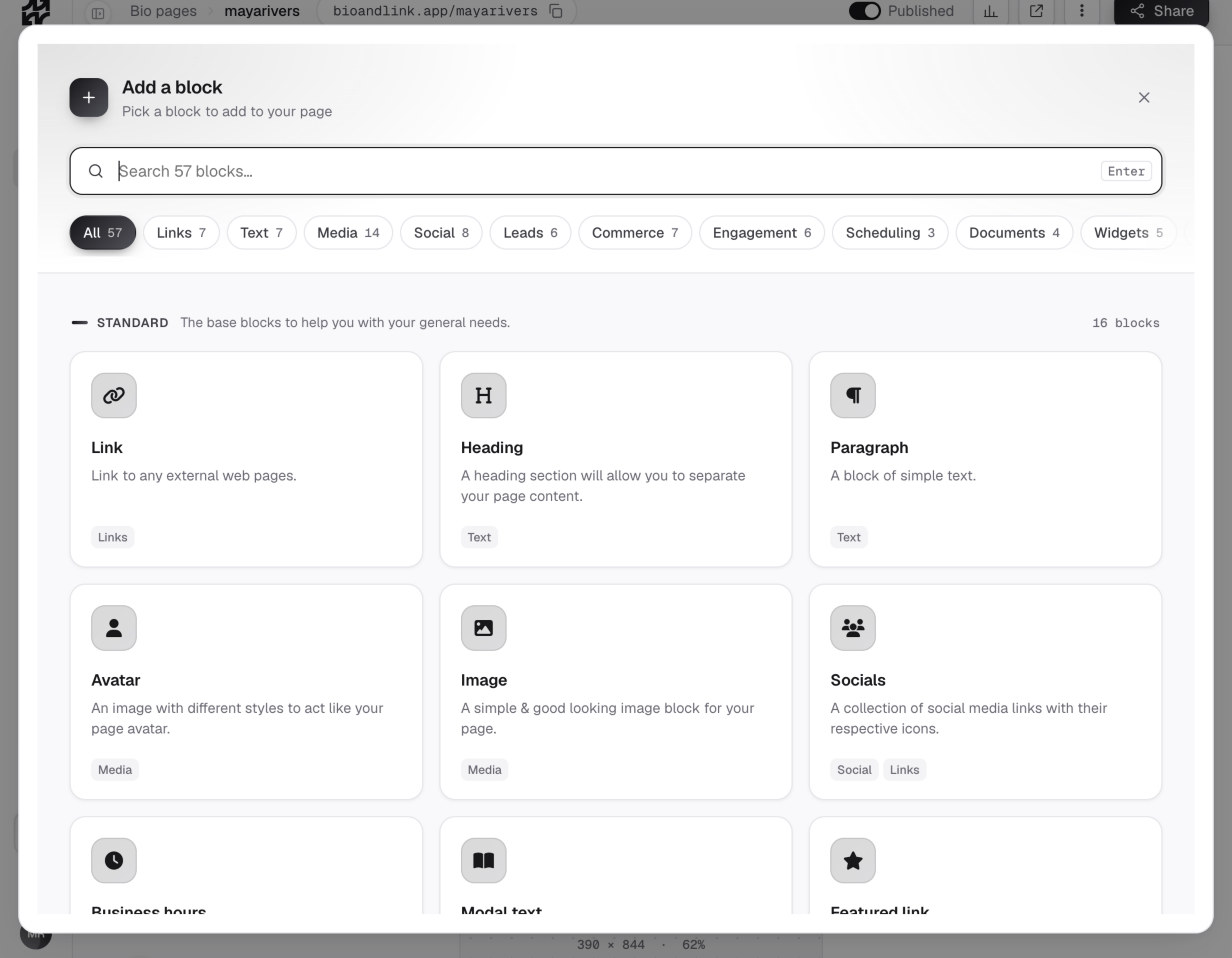
Add a block
Open your page and click Add block.
Choose a block type. Use the search box or the categories to find one quickly.
Fill in its settings and click Save.
Edit or remove a block
Click a block to open its settings. Use the menu on the block to duplicate it, switch it off without deleting it, or delete it.
Reorder
Drag a block by its handle and drop it where you want it. The preview updates straight away.
Tip: Switch a block off instead of deleting it if you only want to hide it for a while, for example a sale that has ended.
There is no limit to the number of blocks on a page.